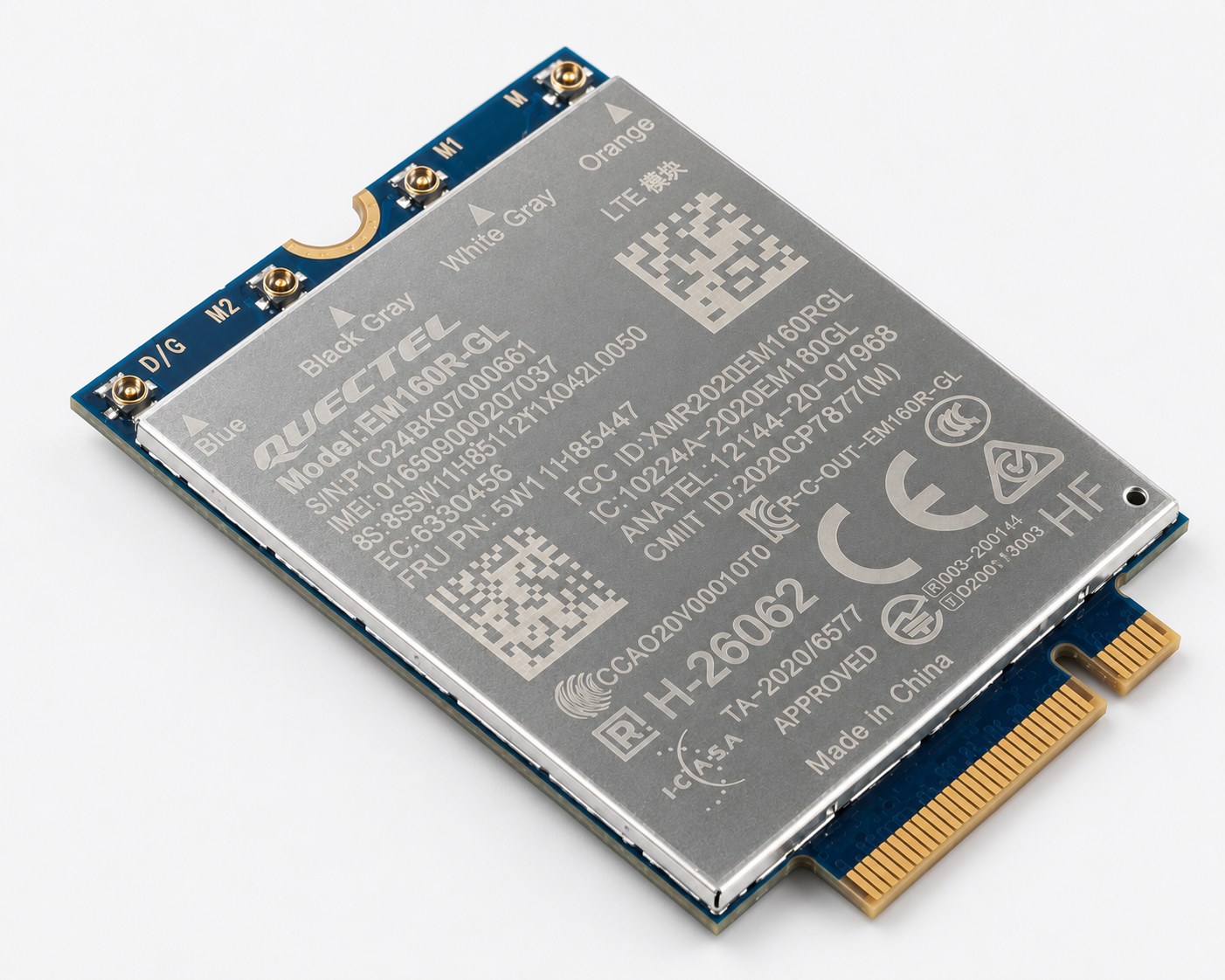
HP ProBook 645: making the HS3110 HSPA+ SIM modem work on Linux
This is not really a diary entry. It is more of a small guide I am keeping for myself, and maybe for someone else who ends up with the same problem.
The goal is simple: getting the integrated SIM modem found in some HP ProBook laptops to work properly on Linux.
Linux has become very solid for everyday use, but some devices still need a bit of manual work. In my case, the problematic device was the integrated mobile broadband module.
The story
A few months ago, while randomly browsing eBay, I found a refurbished HP ProBook 645 for less than €200.
The laptop had:
- 8 GB of RAM
- a 256 GB SSD
- an integrated SIM / mobile broadband modem
- a smart card reader
- everything working
It looked like a good deal, so I bought it immediately.
Of course, the first thing I did was remove Windows and install Linux.
Choosing the Linux distribution
I tested several distributions on this laptop, including Fedora, Ubuntu, CentOS and others.
After a few attempts, I noticed that Debian-based distributions generally worked better out of the box on this machine.
Almost everything worked correctly.
Almost.
The only thing that did not work for me was the integrated SIM modem, which was a problem, since it was one of the reasons why I bought the laptop in the first place.
So the search for a solution began.
Identifying the modem
The first step was to identify the exact SIM modem installed in the laptop.
In my case, the model was written in the documents provided with the computer. If you do not have this information, it may be useful to check the device details from Windows before formatting the system.
Alternatively, from Linux you can try commands such as:
lshw
lspci
lsusb
depending on how the device is detected by the system.
In my case, the device was:
HP hs3110 HSPA+ mobile broadband module
Fortunately, I was not the only one having trouble with this modem. After searching through several Linux communities, I found different suggestions and put together a solution that worked for me.
The procedure below was tested by me on several Debian-based distributions.
Procedure
1. Get root permissions
Open a terminal and switch to root:
sudo su2. Create a systemd service
Create the following file:
nano /etc/systemd/system/huawei.serviceInside the file, paste this content:
[Unit]
Description=Load driver for Huawei HS3110
Before=network.target

[Service]
Type=oneshot
ExecStart=/usr/bin/huawei
RemainAfterExit=yes

[Install]
WantedBy=multi-user.target
Save and exit.
3. Create the bash script
Now create the script that will load and initialize the modem:
nano /usr/bin/huaweiPaste the following content inside the file:
#!/bin/bash

modprobe option
sleep 3

echo "03f0 521d" > /sys/bus/usb-serial/drivers/option1/new_id
sleep 3

usb_modeswitch -H -v 03f0 -p 521d -s 10
Save and exit again.
Important note about vendor ID and product ID
In the usb_modeswitch command, the values after -v and -p identify the USB device.
In this example:
usb_modeswitch -H -v 03f0 -p 521d -s 10the values are:
-v 03f0-p 521d
These values may change depending on your laptop or modem model, so you should always verify them before continuing.
USB devices are usually identified by a pair of hexadecimal values, for example:
03f0:521dwhere:
- 03f0 = vendor ID
- 521d = product ID
In this specific case:
- 03f0 = HP
- 521d = hs3110 / hs3114 HSPA+ mobile broadband modules
To check your own values, run:
lsusbExample output:
Bus 005 Device 001: ID 0000:0000
Bus 004 Device 006: ID 03f0:521d HP, Inc.
Bus 004 Device 001: ID 0000:0000
If your device shows the same ID, you can continue with the guide.
If the values are different, replace them inside the script accordingly.
4. Make the script executable and enable the service
Run the following commands:
chmod o+rx /usr/bin/huawei
systemctl daemon-reload
systemctl enable huawei.service
systemctl start huawei.service
Then reboot the laptop:
rebootAfter rebooting, the modem should be loaded automatically.
Final step: configure the mobile connection
Once the modem is detected correctly, the last step is to configure the connection in your network manager, using the APN settings provided by your mobile operator.
After that, the integrated SIM modem should be ready to use on Linux.
Conclusion
This solution worked for me on an HP ProBook 645 with the HP hs3110 HSPA+ mobile broadband module, mainly using Debian-based Linux distributions.
It may also work on similar HP ProBook models using the same or similar Huawei-based mobile broadband modules.
As always with Linux hardware fixes, the exact device ID may vary. Check everything carefully before applying the commands.